Reschedule PSA Appointment | Complete Process
You can reschedule your PSA appointment using the confirmation email you received without creating a new application. Simply access your PSA/CRS appointment details, follow the reschedule option, choose a new available slot, and confirm your changes. This helps you manage your schedule conveniently and avoid missing your appointment.
When to Reschedule a PSA Appointment?
You need to reschedule your PSA appointment in certain situations to avoid missing your booking. Here are the situations when you should reschedule a PSA online appointment:
- When you cannot attend on your scheduled date due to personal reasons. In this cace, you can also use authorization letter for PSA.
- When you have work, school, or other urgent commitments
- When you notice incorrect details in your appointment information
When you cannot attend on your scheduled date due to personal reasons. If you no longer need the appointment, you can also cancel your PSA appointment instead of rescheduling it.
How to Reschedule a PSA Appointment?
Below is the step-by-step tutorial, along with the screenshots, to reschedule your appointment:
- Open the email used for booking your appointment and locate the PSA/CRS confirmation message in your inbox or spam folder.
- Click “Reschedule” in the email, then follow the instructions to proceed with changes.
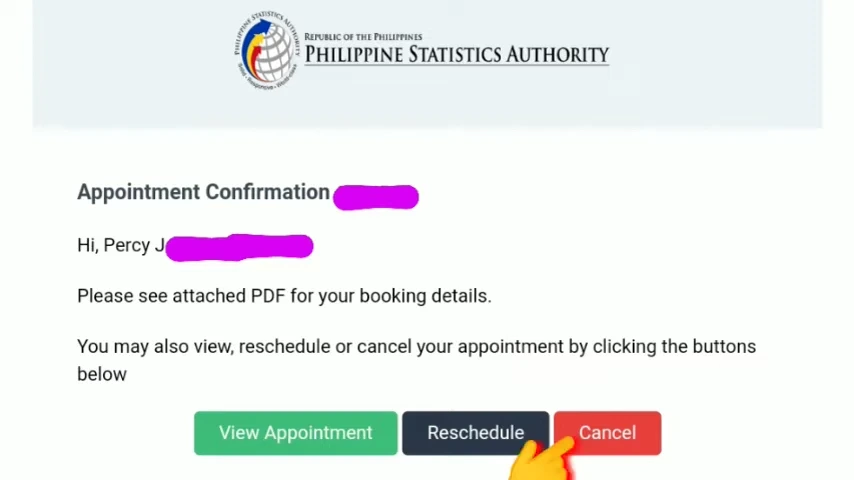
- Complete any verification step if the system asks for identity confirmation.
- Select a new available date and time from the appointment calendar.
- Confirm the changes and save your updated appointment details for reference.
Troubleshooting Common Errors
Rescheduling a PSA appointment can feel a bit stressful when small issues appear, especially if you are doing it for the first time. Here are some common problems you may face and their easy solutions to help you manage it smoothly.
Confirmation Email Not Found
Problem: You cannot find the PSA/CRS confirmation email in your inbox.
Solution: Check your spam, junk, or promotions folder, or search using keywords like “PSA” or your reference number.
Reschedule Option Not Available
Problem: The “Reschedule” button is missing or not clickable.
Solution: Log in again to your PSA account or try using a different browser or device. If the issue continues, contact PSA support. Check what happens when you miss PSA appointment.
No Available Appointment Slots
Problem: You cannot find a suitable date or time after rescheduling.
Solution: The system closes the appointment booking when all slots are booked. Check the day after or before.
FAQs
Conclusion
To reschedule a PSA appointment, you simply open your confirmation email, click the reschedule option, select a new available date and time, and confirm your updated booking. This allows you to change your schedule easily without creating a new application.
Remember that the confirmation mail is available at the email address you used for appointment booking. In this case, no slots are available on your desired date. Check in a day before or after.